If you are a gamer, developer, or a regular Android user, there would be a moment when you would have wished for using your favourite Android app on a bigger screen for a better experience. That is where Android emulators come into play. With the help of an Android emulator, you could use your favourite apps on your computer, simulating an Android environment on your PC or Mac.
Choosing the right Android emulator is important for achieving the best output, whether you want to play a game or test the cross-device functionality of an app. Even as an experienced Android app development company, we often utilize emulators in the testing phase before launch. But the challenge is that performance, compatibility, and efficiency vary for different Android emulators. The question that arises here is, what is the best Android emulator for PC and Mac?
This guide presents a detailed comparison of some of the best Android emulators for PC and Mac in terms of features, performance, and efficiency to help you choose the best Android emulator according to your use case. Let’s start with what exactly an Android emulator is and how it works.
What Is an Android Emulator and How Does It Work?
An Android emulator is a software that creates an Android operating system on a computer. Android emulators make it possible to use Android applications or games on Windows PCs or Macs. This makes emulators widely used for different purposes such as playing games, testing games during Android app development, and accessing Android-only applications.
Emulator vs Virtual Machine vs Android x86
Different methods exist for running Android on computers because each method has its own specific operational function.
| Technology | Description | Typical Use |
| Android Emulator | Simulates an Android environment within software | Gaming, running apps |
| Virtual Machine | Runs a full operating system in isolation | Development and testing |
| Android x86 | Installs Android directly on PC hardware | Advanced users |
How Android Emulators Work?
Android emulators recreate mobile device environments through the implementation of multiple fundamental technologies, such as:
- Hardware virtualization for efficient usage of the processor.
- GPU acceleration for enhanced graphics performance and smoother gameplay experiences
- GPU acceleration for smoother graphics and gaming
- Android Runtime system (ART) for the proper execution of Android applications
Why Virtualization Matters?
Activating CPU Virtualization (Intel VT-x or AMD-V) increases the speed of an emulator by a good degree, giving:
- Increasing app and game speed
- Reducing CPU usage
- Delivering smoother gameplay and multitasking
Why Use Android Emulators on PC or Mac?
Emulators offer several advantages for gamers, developers, and other casual users.
1. Play Mobile Games with Better Controls
People use Android emulators mainly because they want to play mobile games on bigger displays. The inclusion of keyboard and mouse or controller support to games enables better gameplay control while improving performance compared to mobile devices.
2. Test Android Apps During Development
Developers use emulators to test applications on various Android versions and device settings. The testing process helps developers find bugs, verify compatibility, and optimize application performance before the actual product launch.
3. Run Mobile-Only Apps on Desktop
Some applications remain exclusive to Android devices. Users can access applications through emulators, which enable them to run the software directly on a Windows PC or a Mac computer.
4. Multitask with Multiple Android Instances
Many emulators provide users with the ability to create multiple Android environments that they can use to operate multiple instances of the emulator. These features help users to test applications, handle multiple gaming accounts, and execute different applications at the same time.
5. Stream or Record Gameplay Easily
Content creators use Android emulators for recordings and mobile game streaming. Computer gaming allows players to capture high-quality footage and use streaming software without experiencing any performance problems.
Quick Comparison of the Best Android Emulators at a Glance
| Emulator | Best For | OS Support | Android Version | Key Strength |
| BlueStacks | Overall performance | Windows, Mac | Android 11+ | Gaming optimization |
| LDPlayer | Competitive gaming | Windows | Android 9 | Low latency |
| NoxPlayer | Customization | Windows, Mac | Android 9 | Flexible settings |
| MEmu Play | Performance | Windows | Android 9 | Strong hardware support |
| GameLoop | Shooter games | Windows | Android 10 | Tencent optimized |
| MuMu Player | Modern Android apps | Windows, Mac | Android 12 | Latest Android |
| Genymotion | Developers | Windows, Mac, Linux | Multiple | Testing tools |
How We Ranked the Best Android Emulators
When there are dozens of choices, it becomes difficult to decide which one is the best Android emulator. To help you out in this situation, we evaluated each emulator on multiple factors to create a list of the best Android emulators. Here are the factors that we considered in curating this Android emulator list.
Ranking Factors for Evaluating the Best Android Emulators
1. Performance and FPS Stability
We evaluated the performance of each Android emulator by testing its ability to run Android applications and games during demanding graphical tasks. Stable frame rates and minimal lag are critical for a good experience.
2. Resource Consumption
Some Android emulators use significantly more CPU and RAM than others do. We assessed the performance efficiency of each Android emulator by testing it on both mid-range systems and high-end systems.
3. Compatibility with Apps and Games
A good Android emulator needs to handle multiple Android applications and widely used mobile games. It should operate without experiencing any crashes or compatibility problems.
4. Ease of Installation
We examined the ease of the setup process, encompassing such activities as installation steps, account setup, and initial configuration for new users.
5. Developer Features
Features like device simulation, debugging tools, and having multiple versions of Android were taken into account for the users to test or build their apps.
6. Security and Reliability
Emulators from a reliable source would be preferred, indicating a state of active updates and early commitment to creating a secure environment for the functioning of applications or games.
Best Android Emulators for PC and Mac – Detailed Reviews
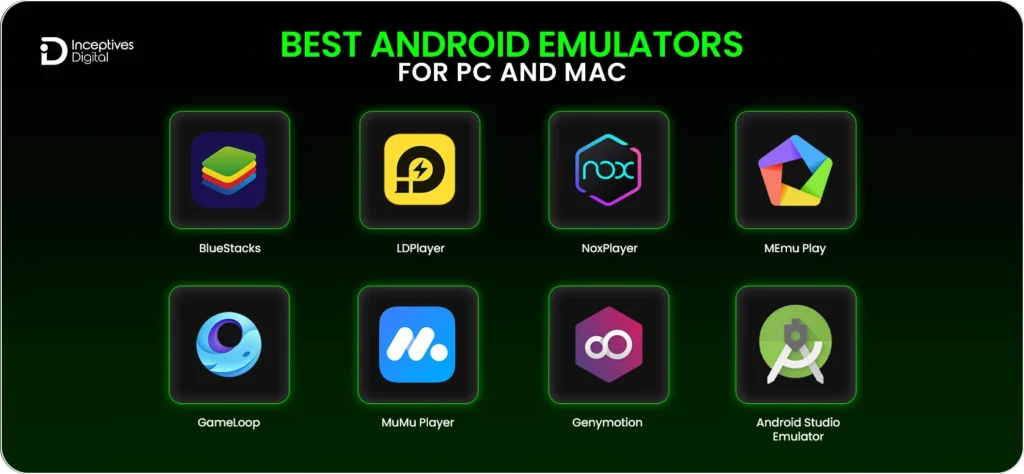
Here is a list of the best Android emulators, along with their key features and the kind of users they cater to.
1. BlueStacks – Best Overall Android Emulator
Overview: BlueStacks stands as the leading Android emulator because it provides both gamers and non-gamers a solution that delivers optimal performance with easy-to-use features and full compatibility across all applications.
Key Features:
- Multi-instance support
- High FPS gaming
- Keyboard mapping
- Google Play integration
Pros:
- Beginner-friendly
- Strong gaming performance
Cons:
- Higher RAM usage
- Ads in the free version
Best For:
- Gamers
- General users
2. LDPlayer – Best Emulator for Competitive Gaming
Overview: LDPlayеr, with lower latency and far more stable FPS, is one of the best Android emulators for fast-paced gaming and offers an upper hand to any competitive gamer.
Key Features:
- Low-latency engine
- Macro automation
- Multi-instance gameplay
- Customizable CPU/RAM allocation
Pros:
- Optimized for high FPS games
Cons:
- Windows only
3. NoxPlayer – Best Emulator for Customization
Overview: NoxPlayer is an excellent Android emulator for people who want flexible settings and advanced control, including root access and macro recording.
Key Features:
- Macro recording
- Root access
- Keyboard and controller support
- Advanced configuration options
Pros:
- Flexible configuration
Cons:
- Occasional performance inconsistencies
4. MEmu Play – Best Performance Emulator
Overview: MEmu Player is specially designed for high-performance systems and supports both Intel and AMD systems, containing various Android versions.
Key Features:
- Intel and AMD optimization
- Location simulation
- Multiple Android versions
- Keyboard mapping
Pros:
- Smooth gameplay performance
Cons:
- Windows-only support
5. GameLoop – Best Emulator for PUBG and Shooter Games
Overview: Developed by Tencent, GameLoop is primarily designed for mobile shooting games, ensuring better compatibility with anti-cheat systems.
Key Features:
- Official Tencent optimization
- Anti-cheat compatibility
- Stable FPS engine
Pros:
- Excellent for FPS and battle royale games
Cons:
- Limited to non-gaming apps
6. MuMu Player – Best Android 12 Emulator
Overview: MuMu Player provides the newest Android experience, modern feature support, and multi-instance settings on Windows and Mac.
Key Features:
- Modern Android environment (Android 12)
- Multi-instance support
- Controller compatibility
- Customizable resolution
Pros:
- Supports newer Android apps
Cons:
- Higher hardware requirements
7. Genymotion – Best Emulator for Developers
Overview: Genymotion provides professional-grade emulation services that enable users to test applications through cloud-based testing facilities and advanced simulation capabilities.
Key Features:
- Cloud testing environments
- Device simulation
- GPS and sensor simulation
- API testing
Pros:
- Professional development tools
Cons:
- Paid plans required for full features
8. Android Studio Emulator – Official Android Testing Tool
Overview: The official Android Studio emulator offers developers a perfect testing environment, which allows testing applications on different devices and multiple Android versions.
Key Features:
- Official Android SDK integration
- Debugging and profiling tools
- Virtual device testing
Pros:
- Most accurate testing environment
Cons:
- Heavy resource usage
Android Emulators Performance Benchmark Comparison
| Emulator | Avg FPS | RAM Usage | Boot Speed | Stability |
| BlueStacks | 60 FPS | High | Fast | Very Stable |
| LDPlayer | 60 FPS | Medium | Fast | Stable |
| NoxPlayer | 50–55 FPS | Medium | Moderate | Stable |
| MEmu | 55–60 FPS | Medium | Fast | Stable |
| GameLoop | 60 FPS | Low | Fast | Very Stable |
Key takeaways
- Best gaming performance: BlueStacks, LDPlayer
- Lowest system usage: GameLoop
Android Emulator Feature Comparison
| Feature | BlueStacks | LDPlayer | NoxPlayer | MEmu | GameLoop | Genymotion |
| Multi-instance | Yes | Yes | Yes | Yes | No | Yes |
| Macro Recording | Yes | Yes | Yes | Yes | Limited | No |
| Keyboard Mapping | Yes | Yes | Yes | Yes | Yes | No |
| Game Optimization | Excellent | Excellent | Good | Good | Excellent | Limited |
| Developer Tools | Limited | Limited | Limited | Limited | No | Advanced |
Best Android Emulator by Use Case
Your usage purpose is what decides which Android emulator will be the best option for you. Some of them perform best in gaming, while some are designed for development, low-end systems. Below, we have listed the best Android emulators based on common use cases.
1. Best Android Emulator for Gaming
For gaming, the most important aspects are performance, FPS stability, and control customization. These Android emulators have been designed to deliver optimal performance for popular mobile games when they are played on desktop computers.
- BlueStacks: Delivers outstanding gaming performance because it provides keyboard mapping and supports high FPS, and it works well with the most popular Android games.
- LDPlayer: Delivers low latency together with stable performance, which makes it an ideal option for players who compete in mobile eSports events.
- GameLoop: performs its best because Tencent developed it to provide optimal performance with shooter games, including PUBG Mobile and Call of Duty Mobile.
2. Best Android Emulator for Developers
Developers require Android emulators to test applications through device simulation and debugging tools across various Android versions.
- Android Studio Emulator: Functions as the official Android emulator, which developers can access through the Android SDK to create authentic device simulations while using debugging features.
- Genymotion: Serves as a robust application testing emulator that provides users with cloud testing facilities and comprehensive device simulation features.
3. Best Android Emulator for Low-End PCs
Some emulators functionally operate on hardware systems that lack advanced processing capabilities.
- LDPlayer: Serves as a lightweight application that provides users with optimal performance capabilities on computers that have mid-range and lower-end specifications.
- NoxPlayer: Provides users with customizable performance options that enable the application to function on devices that have restricted memory capacity.
- MuMu Nebula: Functions as a reduced version of MuMu Player, which developers created specifically for use on computers with restricted hardware capabilities.
4. Best Android Emulator for Mac
Mac users have fewer emulator options compared to Windows, but several reliable choices still provide good performance and compatibility.
- BlueStacks: Serves as the most stable Android emulator, which users frequently choose to run on macOS.
- MuMu Player: Functions as a modern Android emulator that enables users to run applications from current Android operating system versions.
- Genymotion: Provides developers with a testing environment that contains advanced testing capabilities for their macOS development needs.
- NoxPlayer: Functions as an adaptable tool that enables users to run Android applications through user-defined control and configuration options.
Fastest Android Emulators for PC
Not all Android emulators provide the same level of speed and performance. An Android emulator that emphasizes performance should be your choice if you want to achieve seamless gaming experiences, together with fast application startup times and reduced delays.
Top Choices for Speed
- LDPlayer: Provides accelerated performance through its design, which minimizes input delay, making it suitable for competitive gaming use.
- BlueStacks: Delivers high FPS capability while maintaining stable performance during multiple application operations.
- MEmu Play: Provides efficient hardware resource management, which enables seamless performance across Intel and AMD system devices.
Key Factors Affecting Emulator Speed
- Virtualization Support: When the emulator receives Intel VT-x or AMD-V CPU virtualization support, its performance improves through reduced lag and better application speed.
- CPU Cores: Emulators function better through the allocation of multiple CPU cores, which proves essential for graphics-intensive applications and multi-instance operations.
- GPU Acceleration: Using your computer’s graphics card for GPU acceleration allows games and high-resolution applications to be rendered more smoothly.
If you pay attention to such factors and download a promising Android emulator, you’ll get something that closely resembles Android on your PC.
Lightweight Android Emulators for Low-End PCs
These Android emulators operate without system resource overload on low-end PCs, according to their performance results.
| Emulator | Minimum RAM | Best For |
| LDPlayer | 2 GB | Gaming |
| NoxPlayer | 2–3 GB | General apps |
| MuMu Nebula | 2 GB | Low-end systems |
These Android emulators operate efficiently to handle simultaneous tasks, making them suitable for computers with older specifications or lower system requirements.
Android Emulators for Mac (Including Apple Silicon)
Despite Mac users having fewer options compared to Windows users, a large number of Android emulators have arisen that are still quite functional and well-compatible with modern Apple hardware.
Best Mac-Compatible Emulators
- BlueStacks
- MuMu Player
- Genymotion
- NoxPlayer
Apple Silicon Compatibility Considerations
Android emulators need special hardware and software requirements for their operation on Apple Silicon M1 and M2 Macs:
- ARM Support
- Virtualization Frameworks
- Performance Differences vs Intel Macs
This enables Mac users who have the most recent Apple Silicon technology to select an emulator that provides them with three essential benefits.
System Requirements for Android Emulators
At the very least, a system should meet the minimum requirements to smoothly run Android emulators, but it’s even better to meet the recommended specs for the best performance.
Minimum Requirements
- CPU: Dual-core processor
- RAM: 4 GB
- Storage: 5 GB
Recommended Specifications
- CPU: Processor with virtualization support
- RAM: 8–16 GB
- Storage: SSD
- GPU: Dedicated graphics card
How to Install an Android Emulator on PC or Mac
Although installing an Android emulator is as simple as you like, ensuring a smooth performance and compatibility requires a careful execution of each step. Here is a step-by-step guide for installing an Android emulator.
1. Download from the Official Website
Users should always download the emulator from its official website because this method prevents malware infections and protects against using outdated software. The most popular Android emulators, BlueStacks, LDPlayer, and NoxPlayer, provide Windows and Mac users with their own dedicated download pages.
2. Enable Virtualization in BIOS
Virtualization enables your CPU to execute multiple operating systems at optimal performance. Enabling Intel VT-x or AMD-V in your BIOS settings improves emulator speed and stability. Without it, users will face performance issues through application interruptions without it.
3. Install the Emulator
Execute the installer you downloaded and proceed with the installation by following the displayed instructions. The installation process requires you to select both the installation path and the installation options because certain Android emulators permit performance setting adjustments during their installation process.
4. Sign in to Google Play
Users should launch the emulator after completing its installation process and proceed to use their Google account for signing in. This enables users to access the Google Play Store, which allows them to download applications as they would on an actual Android device.
5. Install Apps or APK Files
You can now install Android applications through Google Play or by installing APK files through sideloading. Multi-instance emulators enable users to test and play multiple applications or games at the same time while they work.
Tips and Fixes to Improve Android Emulator Performance
Getting the best out of your Android emulator is more of an art of optimizing your operating system and troubleshooting the typical errors.
Performance Tips
- Enable hardware virtualization
- Allocate more RAM and CPU cores
- Update GPU drivers
- Lower emulator resolution
- Close unnecessary background apps
Common Problems and Solutions
- Emulator running slow
- Emulator not launching
- Apps crashing
- Google Play login errors
Users who implement these guidelines and apply the recommended solutions will experience improved stability, increased performance, and better overall performance when using Android emulators on their PC or Mac.
Android Emulator Alternatives You Should Consider
If you prefer not to use traditional Android emulators, several alternatives let you run Android apps on your PC or Mac.
Windows Subsystem for Android
Android applications on Windows systems without requiring complete emulation. Serves as the best solution for both productivity applications and casual user activities.
Android x86
Install the Android operating system directly on your PC hardware. Provides near-native performance but requires more technical setup.
Cloud Android Platforms
Run Android apps remotely on cloud servers. Useful for testing, app development, or gaming without taxing your local hardware.
How to Choose the Best Android Emulator
Selecting the right emulator depends on your intended use and the hardware you have.
Choose Based on Use Case
- Gaming – Focus on performance, FPS stability, and controller support.
- Development – Look for debugging tools, device simulation, and multi-Android version support.
- Productivity – Prioritize stability, low resource usage, and multitasking features.
Choose Based on Hardware
| Hardware | Recommended Emulator |
| 4 GB RAM | LDPlayer, NoxPlayer |
| 8 GB RAM | BlueStacks, MEmu |
| 16 GB+ RAM | Genymotion, Android Studio Emulator |
By matching your use case and system specifications, you can select an emulator that delivers smooth performance without unnecessary overhead.
Choosing the Best Android Emulator for PC and Mac
Android emulators have come a long way, offering powerful tools for gamers, developers, and casual users alike. From high-performance options like BlueStacks and LDPlayer to developer-focused platforms like Genymotion and Android Studio Emulator, there’s an emulator for virtually every need. Choosing the right one depends on your system hardware, intended use, and the type of apps or games you want to run. With proper setup and optimization, emulators can provide a seamless Android experience on both PC and Mac.
For developers or teams at a mobile app development company, emulators are invaluable for testing and refining apps before deployment. Whether you’re experimenting with new features, debugging, or simply exploring Android functionality on a larger screen, using the right Android emulator can streamline your workflow and improve productivity.
CTA SECTION START
cta title: Test and Optimize Android Apps Like a Pro
cta des: As a mobile app development company, we leverage the best Android emulators to streamline testing, improve performance, and ensure app compatibility.
cta button: Talk To Our Experts
CTA SECTION END
Frequently Asked Questions (FAQs)
The best Android emulator for PC depends on your needs. For overall performance and gaming, BlueStacks is widely recommended, while LDPlayer is great for competitive gaming due to its low latency and high FPS support. Developers often prefer Genymotion or the Android Studio Emulator for accurate app testing.
If you have a low-end PC, LDPlayer, NoxPlayer, and MuMu Nebula are the most lightweight options. They are optimized to run smoothly with 2–4 GB of RAM, making them ideal for systems with limited resources.
Yes, several Android emulators are compatible with macOS. BlueStacks, MuMu Player, Genymotion, and NoxPlayer all run on Mac, including support for newer Apple Silicon devices, though performance may vary compared to Intel-based Macs.
Most popular games run smoothly on emulators, but some titles with strict anti-cheat systems may not be fully compatible. Emulators like GameLoop are optimized for specific games such as PUBG Mobile, while others like BlueStacks and LDPlayer offer broader compatibility.
The fastest Android emulators for gaming are LDPlayer, BlueStacks, and MEmu Play. Speed is influenced by factors like CPU virtualization, the number of allocated cores, and GPU acceleration, so enabling these settings can further improve performance.
SIDEBAR LIST START
- Best Android Emulators for PC and Mac
- What Is an Android Emulator and How Does It Work?
- Why Use Android Emulators on PC or Mac?
- Quick Comparison of the Best Android Emulators at a Glance
- How We Ranked the Best Android Emulators
- Best Android Emulators for PC and Mac – Detailed Reviews
- Android Emulator Feature Comparison
- Best Android Emulator by Use Case
- Fastest Android Emulators for PC
- Lightweight Android Emulators for Low-End PCs
- Android Emulators for Mac (Including Apple Silicon)
- System Requirements for Android Emulators
- How to Install an Android Emulator on PC or Mac
- Tips and Fixes to Improve Android Emulator Performance
- Android Emulator Alternatives You Should Consider
- How to Choose the Best Android Emulator
- Choosing the Best Android Emulator for PC and Mac
- Frequently Asked Questions (FAQs)
SIDEBAR LIST END